Here’s how to add a virtual Suica to an older iPhone from abroad paired with Apple Watch Series 3. Loading a physical Suica card requires iPhone 8 or above but you can get around this limitation with the JR East Suica app. It’s not especially tricky but there are some basic requirements and you have to follow a particular order of steps.
First of all a disclaimer: I do not own an Apple Watch and have not personally tested all of the steps explained below. Instructions are based on discussions with Apple Store staff, Apple Japan Support staff, the JR East Support pages (Japanese only), the experiences of others, and my own testing with Suica Apple Pay and foreign issued credit cards.
This explanation also does not cover the Suica app option of directly entering a credit card to create a digital Suica card which requires you to sign up for a Mobile Suica account. Mobile Suica accepts many foreign issue credit cards but Suica app is only available in Japanese. If you have any experiences of your own to share, please post them in the comments section.
Basic Requirements
You need to have a few things in place before starting. A quick preflight check list:
- An iPhone 6 or above running the latest iOS version that can pair with Apple Watch Series 3 also running the latest WatchOS.
- An App Store Japan or USA App Store account to download and install the JR East Suica app.
- A credit card that is already loaded into your iPhone Apple Pay Wallet. The card can be any Apple Pay compatible card issued from your home country.
Requirements when adding Suica
Your iPhone must have mobile data turned on for Suica to work. If you plan to use Suica in Japan you should have a SIM card for using mobile data in Japan or have data roaming turned on.You need to have network access when adding Suica to Apple Pay, recharging Suica with an Apple Pay credit card or using the Suica app. After successfully adding Suica to your device you can use Suica transit with your device in Airplane mode.- Make sure mobile data app use is turned on for Suica, Wallet and Watch apps.
- Make sure your iCloud account is signed in on iPhone with Wallet services turned on.
- Make sure you have a passcode set for both iPhone and Apple Watch. You can also use Touch ID on iPhone.
- Make sure that Bluetooth is turned on and your Apple Watch Series 3 device is paired with your iPhone.
- Make sure Apple Watch wrist detection is turned on.
- Make sure the Region setting for both devices is set to Japan. The Language setting can be any language you prefer.
- Download the Suica app.
- Launch the Suica app. Note that Suica app will only fully launch after successfully pairing the global FeliCa ready Apple Watch Series 3 device in step #5.
Adding Suica
Now comes the tricky part if you cannot read Japanese. Follow the screenshots and captions to create a new Suica card and add it to your Apple Pay Wallet.


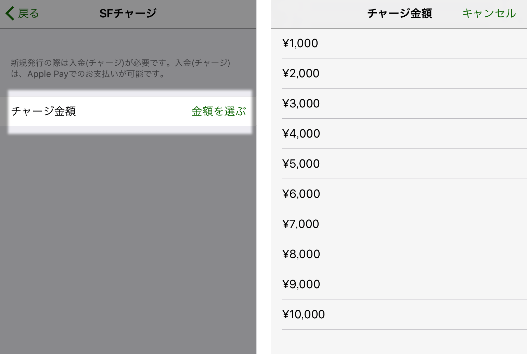


If all went well you should now have a Suica card in your iPhone Wallet app setup for Express Transit. The last step is transferring the Suica card from iPhone to Apple Watch. Read the “Move your Suica from your iPhone to your Apple Watch” section of the Set up a Suica card in Apple Pay support page for details. The first Suica card added to Wallet will automatically be set to Express Transit mode. Those details on are the same Apple Suica support page.
Remember to keep the iPhone mobile data and Bluetooth services turned on. If you do not, Suica will stop working. Suica will be invalidated for security reasons if you do any of the following: sign out of iCloud, unpair iPhone and Apple Watch, turn off passcode on either device, turn off wrist detection.
Enjoy using Suica. Here are some related blog posts that might be of assistance.
Using Suica Apple Pay without Credit Cards
Suica Apple Pay in Airplane Mode
Line Pay and Suica Apple Pay
Update 2017-9-20
Removed Apple Watch Series 2 references and replaced them with Apple Watch Series 3.
Update 2017-3-31
You do not need to be on a network while traveling or using Suica Apple Pay at the ticket gate. You need to be on a network when recharging Suica with the Wallet app or when using the Suica app.
You must be logged in to post a comment.